Reports Management Guide
Welcome to the Reports Management System!
This powerful tool allows you to create, manage, and generate detailed reports from your production data. Here's your complete guide to using all the features:
Reports Overview
Report Types
- Machine Reports: Detailed performance data for individual machines
- Facility Reports: Comprehensive facility-wide analysis
- Custom Reports: User-defined reports with specific parameters
- Performance Reports: Key metrics and efficiency analytics
Output Formats
- PDF Reports: Professional formatted documents
- Charts & Graphs: Visual data representation
- Data Tables: Detailed numeric breakdowns
- Summary Statistics: Key performance indicators
Creating New Reports
Report Builder
- Add New Report: Click the blue "Add New Report" button
- Report Name: Give your report a descriptive name
- Facility Selection: Choose which facilities to include
- Data Parameters: Select metrics and time ranges
Report Configuration
- Machine Selection: Choose specific machines or all machines
- Metric Selection: Pick which data points to include
- Chart Types: Select visualization preferences
- Layout Options: Customize report appearance
Running Reports
Generate Reports
- Run Button: Click the green "Run" button to generate
- Time Frame Selection: Choose your reporting period
- Custom Date Range: Set specific start and end dates
- PDF Download: Report automatically downloads when complete
Time Frame Options
- Quick Select: 6 hours, 12 hours, 24 hours, 3 days, 7 days, 14 days, 30 days
- Custom Range: Select any start and end date/time
- Historical Data: Access past production data
- Real-time Data: Include most recent production cycles
Time Frame Selection Dialog
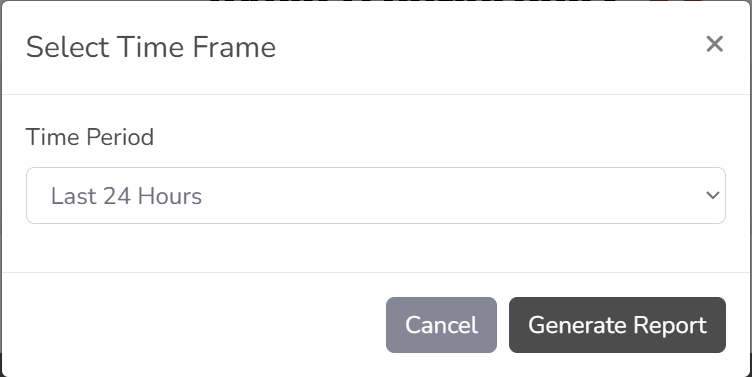
Click image to view full screen - Time frame selection dialog that appears when running reports
Managing Existing Reports
Report Actions
- Edit Report: Modify report parameters and settings
- Delete Report: Remove reports you no longer need
- Run Report: Generate updated reports with new data
- View Details: See report configuration and last run time
Table Features
- Sortable Columns: Click headers to sort by name or facility
- Search Function: Use the search box to find specific reports
- Pagination: Navigate through multiple pages of reports
- Action Buttons: Quick access to run, edit, and delete functions
Permissions & Access
User Permissions
- Read Access: View and run existing reports
- Write Access: Create, edit, and delete reports
- Facility Restrictions: Only see reports for assigned facilities
- Role-Based Access: Different capabilities based on user role
Facility Access
- Assigned Facilities: Access limited to your assigned facilities
- Multi-Facility Reports: Create reports spanning multiple facilities
- Company Restrictions: Data isolation between companies
- Admin Override: Super administrators can access all data
Troubleshooting & Tips
Common Issues & Solutions:
- Empty Reports: Check if data exists for the selected time period
- Slow Generation: Large time ranges may take longer to process
- Permission Errors: Contact admin if you can't access certain functions
- Missing Data: Verify machine connectivity during the report period
- Download Issues: Check browser pop-up blocker settings
- Date Range Errors: Ensure start date is before end date
- Report Configuration: Save changes before running reports
Best Practices
Tips for Effective Reporting:
- Use descriptive names for your reports to easily identify them later
- Test reports with small time ranges before running large historical reports
- Include relevant facilities and machines for comprehensive analysis
- Schedule regular report generation for consistent monitoring
- Delete unused reports to keep your report list organized
- Use custom date ranges for specific incident analysis
- Share reports with team members for collaborative analysis
- Keep report configurations updated as your needs change